The HafizeBot commands you need most are /on and /off to start and stop auto-trading, /summary to see every setting, /setStoploss (0 to 90%, new accounts start at 10%), /setLeverage (1 to 20x, default 2x), /setPositionSize and /setPositionLimit for how much the bot trades, and /lastsignals to see what it did with each signal and why. You send all of them to @hafizebot on Telegram.
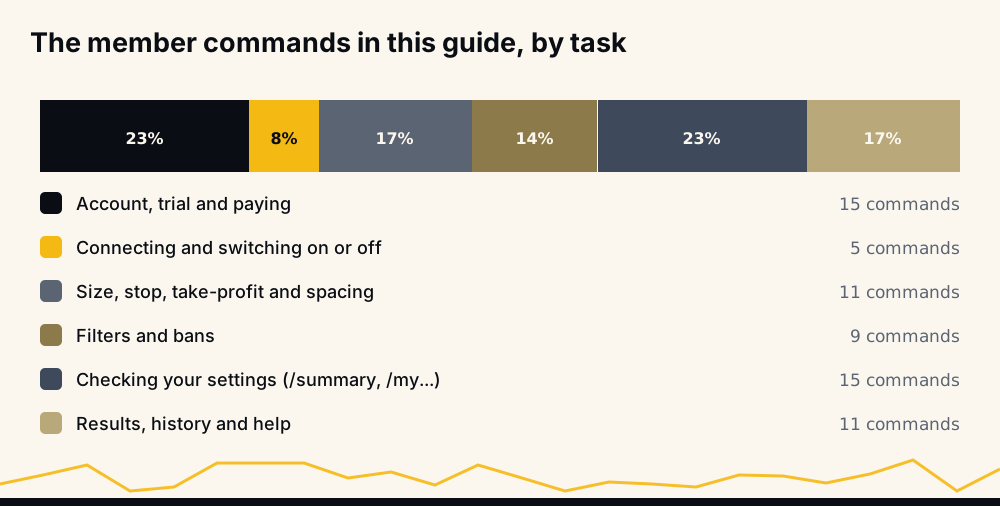
Below is every member command as of October 2026, grouped by task, with the ranges and defaults the bot accepts. It replaces our 2021 list, which had the wrong stop-loss range.
The eight commands you will use most
Most members set things up once and then live with a handful of commands.
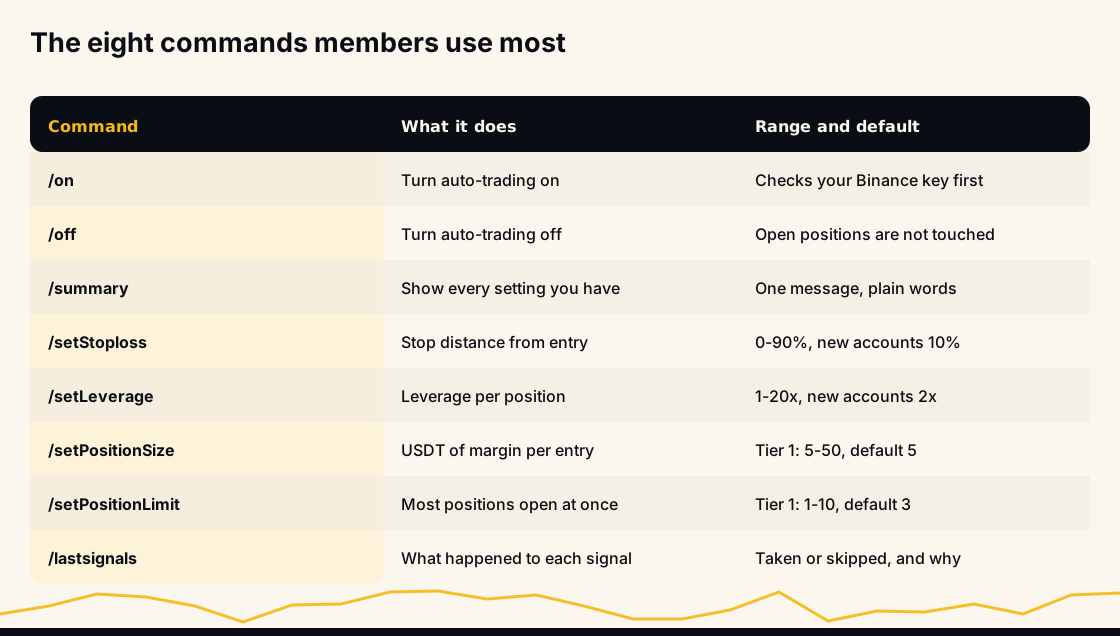
The four /set commands in the middle are the numbers that decide how much money is at stake; the rest of this page explains each one.
How commands work in @hafizebot
Commands are not case-sensitive. /setStoploss, /setStopLoss and /setstoploss all reach the same place.
Send a setting command on its own and the bot asks for the value. /setLeverage alone gets a prompt; /setLeverage 3 sets it in one go. /cancel drops whatever the bot is waiting for.
Old names still work. If you learned the bot from an older guide: activate is now /on, deactivate is /off, and /setRisk is /setMinStrength.
Auto-trading commands need auto-trading access. Anyone can use the account and help commands. The settings commands need an active VIP membership with auto-trading switched on through /autotrade, and a few need Tier 2 or above. /help lists exactly the commands your account can use today.
Getting started, the trial and paying
These commands work for everyone, VIP or not.
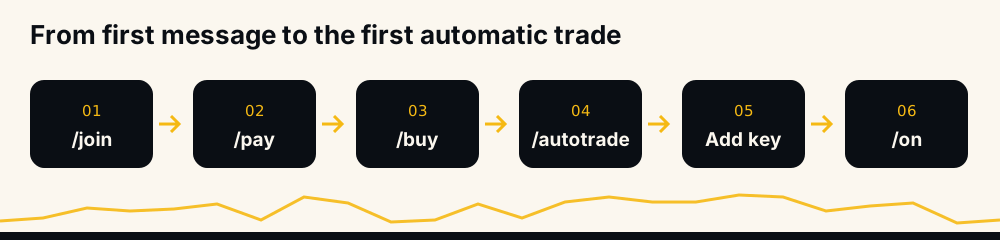
/start: the main menu./vipand/vipinfo: the VIP menu, and what membership includes./plans: the tiers and prices. Tier 1 is 50 USDT a month, Tier 2 is 100 and Tier 3 is 200; annual plans are 500, 1,000 and 2,000 USDT, twelve months for the price of ten. Plans and prices has the full table, and our pricing breakdown explains how to choose./trial: points you to the free trial page, where an email gets you a one-time code for three days of VIP./coupon CODE: redeems a trial code or coupon and sends the VIP channel invite./join: how to become a member, including the deposit details for the network you choose. We do not repeat those details here on purpose: always take them from/joininside the bot./pay: adds your USDT transfer to your balance, using the transaction ID./buy: spends balance on a plan, for example/buy tier1. VIP starts straight away./balance: your USDT balance and the plans it can buy./status: your tier, expiry date and chat ID./subscribe: turns on automatic renewal from your balance. Nothing renews unless you switch this on./renew: how to extend your membership. Buying again adds the new months on top of your current expiry./invite username: names the active VIP member who referred you, before your first purchase; you both get seven extra days./language: choose the bot's language.
The step-by-step version is in how to join VIP, and the free trial guide covers who can use a trial.
Connecting Binance and turning trading on or off
HafizeBot trades Binance USDⓈ-M Futures only, in one-way position mode, on your own account. Your funds never leave it, and the key needs no withdrawal permission.
/autotrade: switches on auto-trading access. For an active VIP member it takes effect immediately.- Your API key goes on the website, never in a chat. Log in with Telegram and paste it at hafizebot.com/app/keys. How to connect your Binance API key lists the boxes to tick, and our article on connecting a trading bot to Binance safely explains why withdrawals stay off.
/setup: your setup checklist and the next step you are missing./settings: the auto-trading settings menu, with buttons./on: turns auto-trading on. It first asks Binance whether your saved key works. If Binance refuses it, or Enable Futures is not ticked, you stay off and the bot tells you why. With no key saved, it switches on but nothing can trade until you add one./off: turns auto-trading off. No new trades are opened; positions already open are not touched. Our article on what happens to open positions if the bot stops covers that case in detail.
One more way auto-trading can switch off: if your futures wallet runs out of free margin, Binance refuses the order, the bot turns auto-trading off and tells you. Top up the USDⓈ-M Futures wallet and send /on again. If your account is in hedge mode, switch it to one-way mode on Binance first.
Risk settings: leverage, position size and position limit
These three numbers, plus the stop-loss below, decide how much is at stake at any moment.
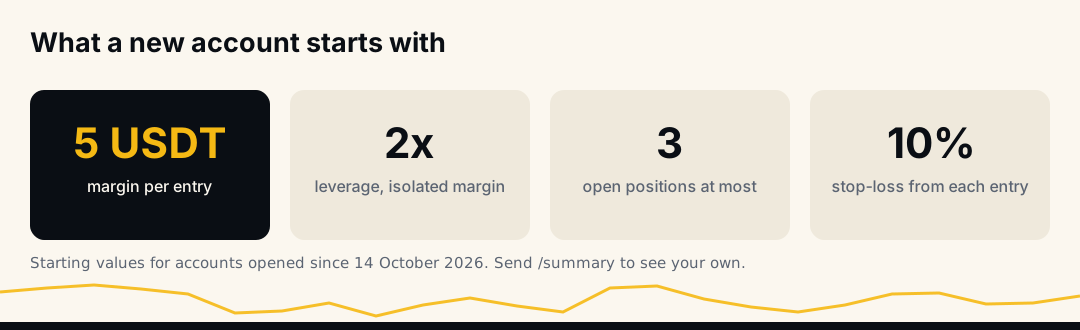
/setLeverage takes 1 to 20 on every tier; new accounts start at 2. Raising it shortens the distance to liquidation, so the bot re-checks your stop when you change it: on isolated margin it refuses a leverage that would put your current stop beyond the liquidation price and asks you to tighten the stop first. Our guide to Binance futures leverage limits covers what Binance itself allows.
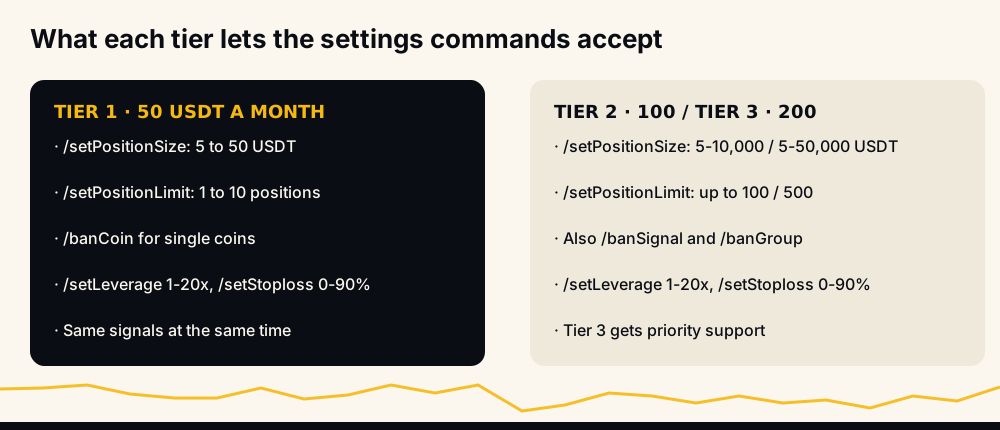
/setPositionSize is the USDT of margin used for each entry. Binance opens margin times leverage, so 5 USDT at 2x is a 10 USDT position. Tier 1 accepts 5 to 50, Tier 2 5 to 10,000 and Tier 3 5 to 50,000; the default is 5. During the free trial, each entry is capped at 10 USDT.
/setPositionLimit is the most positions open at once: 1 to 10 on Tier 1, up to 100 on Tier 2 and up to 500 on Tier 3, default 3, and 3 during the trial. It counts every open position on the account, including ones you opened by hand, not only the bot's. Signals often arrive in bursts, and this limit is what stops a burst from using your whole wallet.
/setMarginType takes ISOLATED or CROSSED; new accounts start on ISOLATED. On isolated margin one position can never lose more than its own margin. On cross margin it can draw on the whole futures balance. If Binance reports your account in Multi-Assets mode, the bot enters on cross whatever this setting says.
Stop-loss and take-profit commands
This is the part the old list got wrong, so here it is carefully.
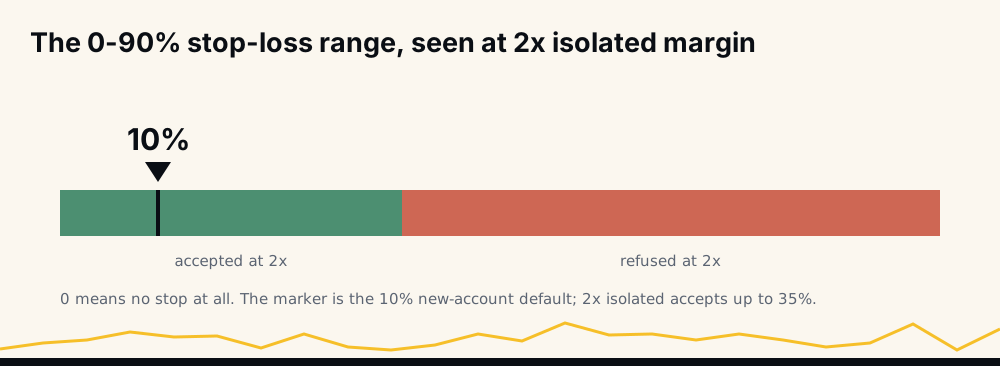
/setStoploss takes 0 to 90. The number is a price move from your entry, measured without leverage: 5 closes a long when price is 5% below the entry, which at 5x is about 25% of that trade's margin. New accounts start at 10%. 0 means no stop at all, and then a position closes only at its target, by your hand, or by Binance liquidation; nothing closes it when the signal expires.
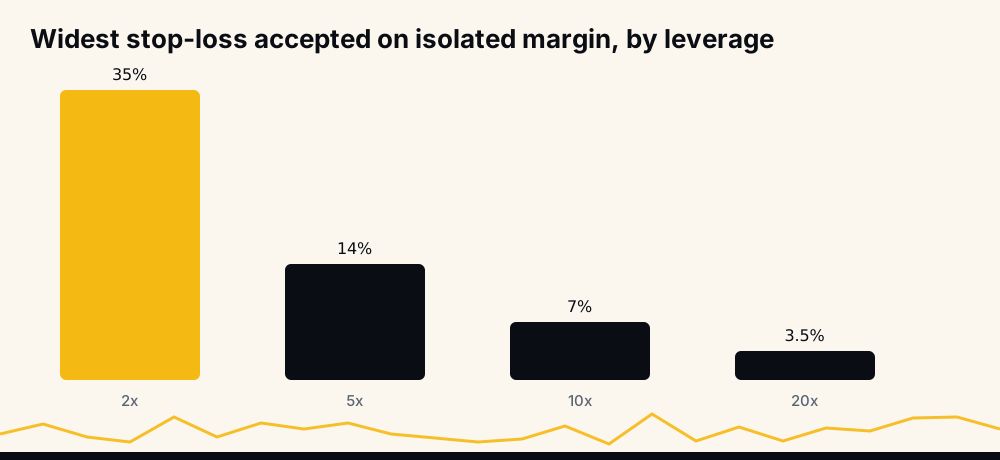
A stop only protects you if it is closer than the liquidation price. On isolated margin the bot refuses a stop wider than about 70% of the liquidation distance and tells you the largest one that works: 35% at 2x, 14% at 5x, 7% at 10x and 3.5% at 20x. On cross margin a wider stop is saved, with a warning that it can lose more than that position's margin. The stop-loss help page explains the smaller coins where Binance liquidates sooner, and the liquidation price calculator checks a specific coin and leverage.
/setStopType takes OFF, SINGLE or COMBINED; the default is SINGLE. SINGLE places one stop per entry, measured from where that entry filled. COMBINED replaces them with one stop for the whole position, from its average entry. OFF places no stop whatever the percentage says, so check both values if a stop did not appear. For the general idea behind stops, read how to set a stop-loss in crypto.
/setTakeProfitType takes LIMIT or TRAILING; the default is LIMIT, a reduce-only limit order at the signal's target. TRAILING starts following price only once it moves beyond the target, so a signal that just touches its target leaves a trailing position open. The published record is scored the LIMIT way; if unsure, keep LIMIT. Limit or trailing compares them.
/combineTakeProfits takes yes or no, and is on by default. When the bot has added to a coin, yes closes the entries together at one combined take-profit instead of one order each.
Repeat entries, spacing and the coin pause
A new signal on a coin you already hold, in the same direction, can add a second entry with its own size. Three commands control that.
/allowRepeatingSignals yes|no: whether that second entry is allowed at all. Yes is the default; no means one position per coin until it closes. See repeating signals./setSameCoinGap(also/setDifference): how far price must have moved past your last entry before another one, lower for a long and higher for a short. It takes 0 to 100%, default 3%; 0 allows any spacing. The same-coin gap has examples./setCoinPause: minutes to wait after a position on a coin closes, at target, stop or by hand, before entering that coin again. It takes 0 to 1440 (a full day); the default 0 means no pause.
A signal in the opposite direction on a coin you hold is skipped while you hold it.
Filters and bans
Filters decide which signals the bot takes at all. They change your account only; every VIP member receives the same signals at the same time.
/setMinStrength: the minimum signal strength to trade, 0 to 5, default 5, the highest-rated signals only. 0 takes every signal. A higher minimum means fewer, pickier entries. Signal strength explains how to compare strengths in the public dataset./setPositionSide: LONGONLY, SHORTONLY or BOTH (the default)./banCoin SYMBOLand/unbanCoin SYMBOL: block or allow one coin, on any plan, for example/banCoin SHOPUSDT./banGroupand/unbanGroup, Tier 2 and up: block a whole Binance group such as Meme, Layer-2 or TradFi. New accounts since 8 October 2026 start with TradFi banned./banSignaland/unbanSignal, Tier 2 and up: block a signal type. Sent on their own, both ban commands show buttons; a tap bans or unbans./banlist: everything you have blocked, coins, signal types and groups together.
The ban coins help page lists the Binance groups.
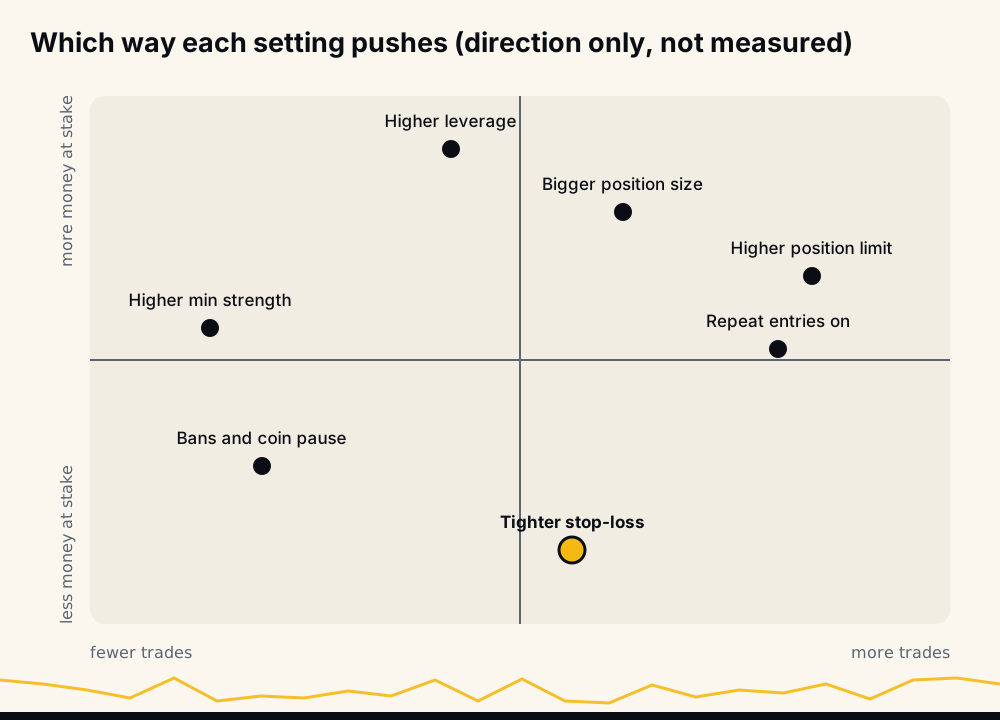
The map shows direction only, not measured effects.
Checking your settings
/summary: all your auto-trading settings in plain words, each with the command that changes it. Send it after any change./explain: what each setting does, in the bot.- The
/my...commands each show one value:/myLeverage,/myPositionSize,/myPositionLimit,/myStoploss,/myStopType,/myTakeProfitType,/myMinStrength,/myPositionSide,/myMarginType,/mySameCoinGap,/myCoinPauseand/myTradeNotices. /setTradeNotices: which fill messages you receive. ALL (the default) sends every fill, CLOSES only fills that close or cut a position, OFF none. Trading itself is unchanged.
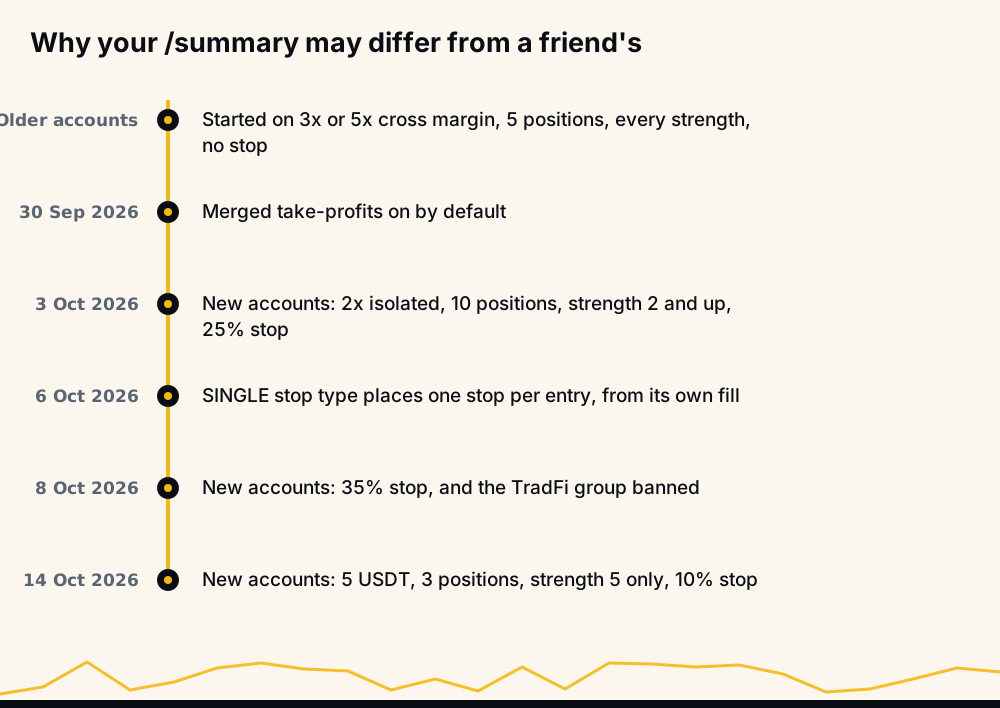
Defaults apply to new accounts only, so two members can have different settings without either having changed anything. Accounts opened earlier keep the values they started with: in early October 2026 up to 25 USDT, 10 positions, strength 2 and up and a stop of 25% to 35%; before that 3x or 5x cross margin, 5 positions, every strength and no stop, unless the member changed them. Default settings has the current list.
Results and history
/lastsignals: your recent signals, what the bot did with each, and the reason for every skip. Send this first when a trade did not happen./today: what the bot did on your account in the last 24 hours./myResults: what the bot's own trades did on your account over the last 30 days./results: download the monthly order reports from the 2021 to 2024 archive, also downloadable from the reports page./signals: the link to the free signal channel, which posts the stronger signals, strength 3 and up, 20 minutes later.
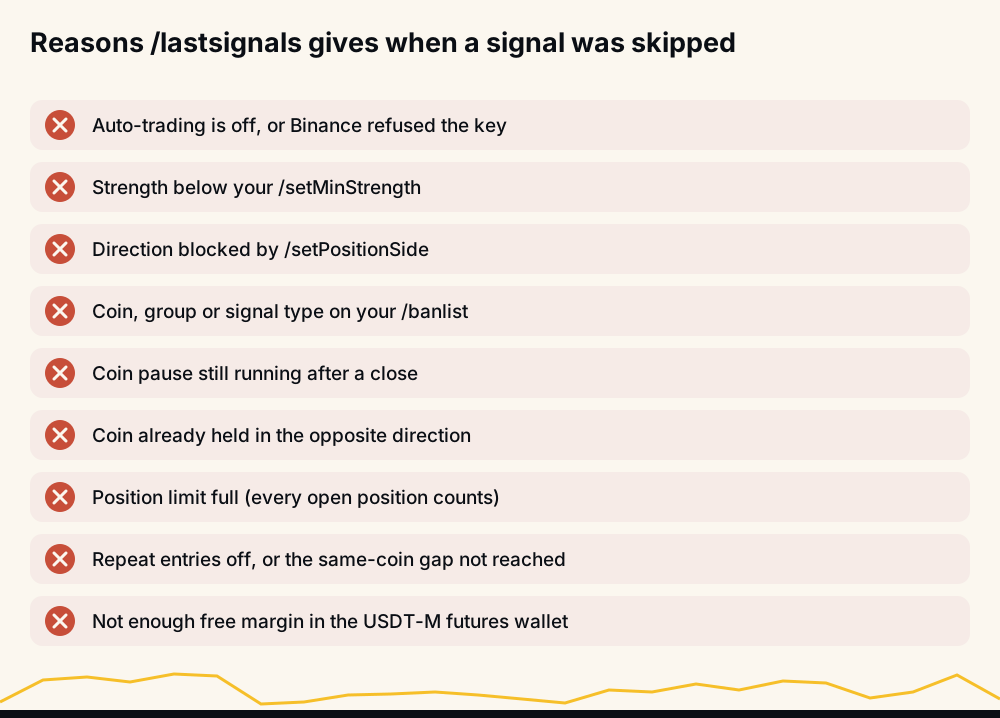
Your own fills depend on your settings, so they will not match the public record trade for trade. The public record of every signal is on the live performance page, rebuilt hourly, with expired signals counted against the hit rate. If nothing is being entered, the bot is not trading checklist goes through the causes in order.
Help and support
/help(also/commands): the commands your account can use./faq: answers to common questions, by topic./guides: downloadable guides, including the bot commands PDF./howtowithdraw: how to withdraw USDT from Binance./support: write to the team. A person reads every message and answers within a day; Tier 3 gets priority. See contact support./cancel: stop whatever the bot is waiting for.
What the default settings put at risk
Three positions of 5 USDT margin at 2x is 15 USDT of margin and 30 USDT of position value. If every one of them reached its 10% stop, the loss would be about 3 USDT, plus fees and slippage. During the trial, at 10 USDT and 3 positions, the same arithmetic gives about 6 USDT.
Compare that worst case with your wallet. If it would hurt, lower /setPositionSize or /setPositionLimit before you send /on. None of this is investment advice, futures can lose money quickly, and you should only trade what you can afford to lose.
FAQ
What are the HafizeBot commands?
The main ones are /on, /off, /summary, /setStoploss, /setLeverage, /setPositionSize, /setPositionLimit and /lastsignals. Others cover paying (/join, /pay, /buy), filters (/setMinStrength, /banCoin) and results (/today, /myResults). /help in the bot lists the ones your account can use.
How do I set a stop loss in HafizeBot?
Send /setStoploss followed by a number from 0 to 90, for example /setStoploss 10 for a stop 10% from each entry. Make sure /setStopType is SINGLE or COMBINED, not OFF. On isolated margin the stop must sit inside the liquidation distance, so at 5x the widest accepted is 14%.
How do I turn HafizeBot auto-trading off?
Send /off. The bot opens no new trades, and positions already open are not touched. Send /on to start again; it checks your key with Binance first.
Why did the bot not take a signal?
Send /lastsignals; it gives the reason for each recent signal. The usual causes are a strength below your minimum, a banned coin or group, a full position limit, the same-coin gap, or too little margin in the futures wallet.
Do the Activate and Deactivate commands still work?
Yes. activate and deactivate are aliases of /on and /off, and /setRisk still reaches /setMinStrength. The new names are the ones the bot and this page use.
Do commands differ between Tier 1, 2 and 3? The commands are the same; the accepted ranges differ. Tier 1 allows 5 to 50 USDT per entry and up to 10 positions, Tier 2 up to 10,000 USDT and 100 positions, Tier 3 up to 50,000 USDT and 500 positions. Banning signal types and groups needs Tier 2 or above.
Where to go next
If you are new, open @hafizebot, send /start, and follow /setup until it says you are done. To judge the signals before paying, watch the free channel and compare it with the strength 3 and up rows of the performance page. Once you trade, two habits answer most questions: /summary after every change, /lastsignals whenever something surprises you.